What Is Nearby Share? Browser-Based Wi-Fi File Transfer Explained
Learn what Nearby Share is, how our browser-based Wi-Fi file transfer website works across Android, iPhone, Windows and Mac, and how direct WebRTC connections keep your files private.
Moving a file between two devices sitting right next to each other on the same desk should be effortless. Yet in practice, sending a few photos from an iPhone to a Windows laptop, sharing a PDF from a Mac to an Android phone, or passing a presentation to a colleague often turns into a frustrating detour. People end up emailing attachments to themselves, uploading files to cloud drives just to download them again seconds later, hunting for USB cables, or installing platform-specific desktop apps.
Nearby Share was built to remove that friction. It is an independent, browser-based wireless file transfer tool that lets you send photos, videos, documents, and other files directly between nearby devices over the same Wi-Fi network—with no app installation and no user account required.
In this guide, we explain what Nearby Share is, how our website works under the hood, what features are built into the transfer workspace, and how to get the smoothest cross-platform file sharing experience.
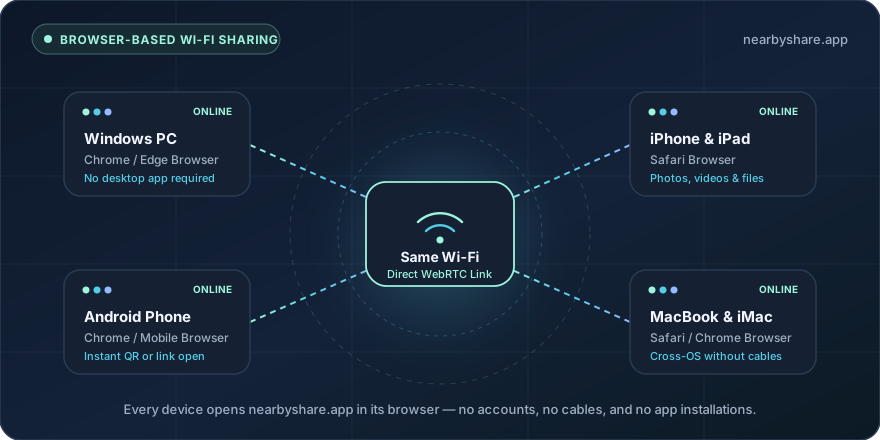
What Is Nearby Share on the Web?
When people search for what is Nearby Share, they are usually looking for a fast, local way to move files between nearby phones, tablets, and computers without cables. Our website, nearbyshare.app, brings that concept directly into the modern web browser.
Instead of locking you into a single hardware ecosystem or requiring you to download native software onto every phone and computer you own, Nearby Share runs inside the browser you already use—such as Chrome, Safari, or Edge. As long as two devices are connected to the same local Wi-Fi network and have the website open, they can discover each other and exchange files directly.
An Independent Browser Tool
It is helpful to clarify upfront what our website is and how it relates to operating system features with similar names:
- Independent web application: Nearby Share at nearbyshare.app is an independent browser-based tool. It is not affiliated with Google, and it does not connect to or pair with the native Android or Windows Quick Share application.
- Universal browser compatibility: Because both the sender and receiver use the web interface, you are never blocked by operating system boundaries. An iPhone running Safari can send photos to a Windows PC running Edge just as easily as an Android phone sends documents to a MacBook.
- Zero installation footprint: You do not need administrator privileges to install a desktop client, and you never need to register an email address or sign in to an account.
Why Browser-Based File Sharing Matters
Traditional file transfer methods usually force a trade-off between convenience, compatibility, and privacy:
| Transfer Method | Cross-Platform Support | Setup Required | Cloud Upload Needed? |
|---|---|---|---|
| Built-in OS sharing | Limited to specific ecosystems | Built into supported OS versions | No |
| Cloud storage drives | Works across all devices | Account login on both devices | Yes (upload then download) |
| Messaging apps | Works across most devices | App installation and login | Yes (often compresses media) |
| USB cables & drives | Depends on ports and drivers | Physical cable or adapter | No |
| Nearby Share (Web) | Android, iPhone, Windows, Mac | Open nearbyshare.app in browser | No (direct WebRTC transfer) |
By turning the browser itself into the transfer endpoint, Nearby Share gives you the direct local path of peer-to-peer sharing combined with the universality of a web page. Whether you are working on a personal phone, a family tablet, or a secondary laptop, you only need a browser tab to start moving files.
Key Features of the Nearby Share Website
When you open Nearby Share, you land directly in the interactive transfer workspace. Every part of the interface is designed to make local file sharing transparent, predictable, and easy to control.
1. Automatic Same-Wi-Fi Device Discovery
As soon as you load the page, Nearby Share connects to our lightweight discovery service and places your browser into the local network group for your Wi-Fi connection. Other devices on the same Wi-Fi network that also have the page open appear automatically in the Pick a nearby device list.
Each device is assigned a readable display name and a device icon indicating whether it is a phone or a computer. If you use multiple devices regularly, you can click Rename device at the top of the workspace to give your browser a custom alias—such as "Studio MacBook" or "Alex's iPhone"—so you can always identify the right target at a glance.
2. QR Code and One-Click Invite Link
Typing a URL on a second device takes only a few seconds, but Nearby Share makes opening the second screen even faster:
- QR Code scanner: Click the QR code button in the invitation panel to display a scannable code on your screen. Point your phone's camera at your computer monitor to launch the page immediately.
- Copyable share link: Use the Copy link to share button to copy the address and send it to another device or a nearby friend.
3. Multi-Format File Selection and In-Browser Preview
You can drag and drop files directly into the workspace on a computer or tap to open the native file and photo picker on a mobile device. Nearby Share supports photos, videos, PDFs, office documents, archives, and any other file format your browser can read from disk.
Before you press send, you can review the total file count and combined size, remove individual items from the selection, or click on a queued item to preview supported media and images right inside the browser. That way, you can verify you picked the right screenshot or video clip before initiating the transfer.
4. Recipient Confirmation and Concurrent Transfers
Nothing is saved to a receiving device without approval. When a sender starts a transfer, the recipient sees an incoming request showing the sender's device name, the number of files, and the total file size, with clear options to Accept files or Decline.
For busy workflows, Nearby Share supports simultaneous sending and receiving. Up to three file transfers can run concurrently, while any additional transfers wait automatically in the queue and start as soon as a transfer slot opens.
5. Built-In Connection Diagnostics
Local networks vary widely. If a transfer ever encounters a network hurdle, Nearby Share includes a Diagnostic logs viewer right in the workspace. You can inspect or copy the session logs locally to help troubleshoot connectivity without exposing your files.
How Nearby Share Works in Three Simple Steps
You do not need any technical configuration to use the site. Every transfer follows the same three-step workflow:
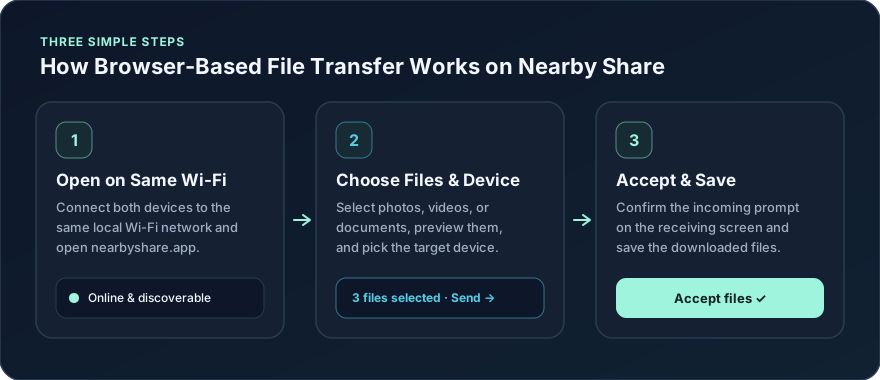
Step 1: Connect to the Same Wi-Fi and Open the Page
Make sure both devices are connected to the same Wi-Fi network and have an active internet connection so the browser can load the site and reach the discovery service. Open nearbyshare.app on both screens and keep both browser tabs visible in the foreground.
Step 2: Choose Your Files and Select a Nearby Device
On the sending device, select one or more photos, videos, or documents. Until you actually start the transfer, your selected files remain untouched on your device. Next, select the target phone or computer from the nearby device list and press Send files.
Step 3: Accept the Request and Save Your Files
On the receiving device, review the incoming prompt and click Accept files. Keep both pages open while the progress bar completes. Once finished, the receiving browser saves the files through its standard download flow. If you sent multiple files at once, allow multiple downloads if your browser prompts you for permission.
Under the Hood: Direct WebRTC Transfers and Privacy
A common question when using any online tool is: Where do my files actually go?
Many web-based file sharing services work like temporary cloud lockers—they upload your files to a remote storage server and give the other device a download link. That approach consumes twice your internet bandwidth, slows down large transfers, and leaves copies of your personal documents on a third-party server.
Nearby Share takes a fundamentally different approach powered by WebRTC (Web Real-Time Communication).
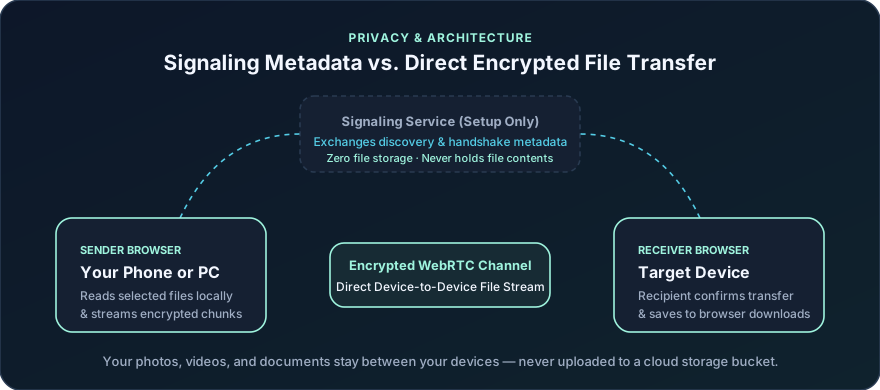
Signaling Metadata vs. File Contents
To establish a connection between two browser tabs, the devices first need to find each other and exchange network handshake parameters (such as ICE candidates and session descriptions). Nearby Share uses a signaling service solely for this initial coordination.
Once the handshake succeeds:
- Direct peer-to-peer data channel: The two browsers establish a direct connection over your local network.
- Encrypted in transit: WebRTC encrypts all data flowing across the connection using standard DTLS/SRTP encryption protocols built into modern browsers.
- No cloud file storage: Your actual file contents stream directly from the sending browser to the receiving browser. They are never uploaded to or stored on our signaling server.
Everyday Use Cases for Nearby Share
Because Nearby Share works across fifteen interface languages and every major desktop and mobile browser, it fits naturally into daily routines at home, in the office, or in the classroom:
- Phone photography to desktop editing: Quickly move original, uncompressed photos and 4K video clips from an Android phone or iPhone to a Windows PC or Mac for editing, without waiting for cloud photo libraries to sync.
- Cross-platform iPhone and Windows workflows: Bridge the gap between iOS and Windows without installing third-party companion software or connecting a USB cable.
- Work and study documents: Pass PDFs, slide decks, spreadsheets, and meeting notes between a tablet and a laptop before a presentation.
- Sharing with friends and colleagues: Hand over project assets or group photos to someone sitting across the table by having them scan the on-screen QR code on the same Wi-Fi.
Practical Tips for Smooth Transfers and Large Files
Because Nearby Share runs inside a web browser over your local network, keeping a few practical guidelines in mind will help you get the best results:
- Keep both browser tabs open and awake: Mobile operating systems aggressively pause background browser tabs or locked screens to save battery. Keep the Nearby Share page on screen on both devices until the transfer finishes and you have verified the saved files.
- Watch out for isolated guest or corporate networks: Public Wi-Fi in hotels, cafes, schools, or offices often enables client isolation (AP isolation), which intentionally blocks devices on the same Wi-Fi from talking directly to one another. A standard home or trusted private Wi-Fi network works best.
- Check active VPNs: A VPN can route your browser traffic through a virtual tunnel outside your local network, preventing direct local discovery or peer-to-peer links. If your device does not appear or fails to connect, try pausing the VPN temporarily.
- Mind browser memory limits on very large files: Nearby Share does not impose an artificial application-level file-size cap. However, because browsers assemble received files in memory before saving them to disk, transferring an extremely large multi-gigabyte video or a massive batch of files at once can exceed the available RAM on a mobile browser. For large batches, sending a few files at a time is more reliable.
Start Sharing Files in Your Browser Today
File sharing between devices in the same room does not need to involve accounts, cloud storage quotas, or platform lock-in. With Nearby Share, your browser becomes a direct, encrypted bridge between your phones, tablets, and computers.
Ready to try it yourself? Connect two of your devices to the same Wi-Fi network, open nearbyshare.app in both browsers, and send your first file in seconds. You can also explore our step-by-step phone-to-PC Wi-Fi transfer guide for detailed tips on mobile download locations and network troubleshooting.